Get started with WiseGraph
WiseGraph turns your PDFs, slides, and documents into concept-map-based micro lessons so you can study in focused, five-minute blocks.
Create your first notebook and lesson
Start by creating a home for your course or subject.
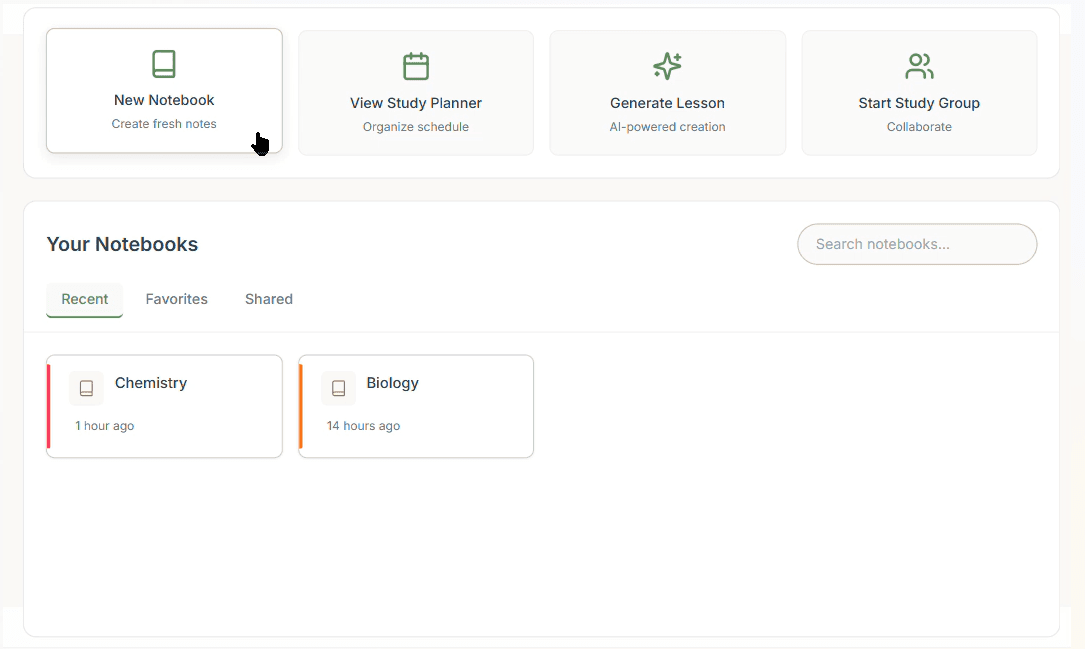
- On the welcome screen, select New notebook.
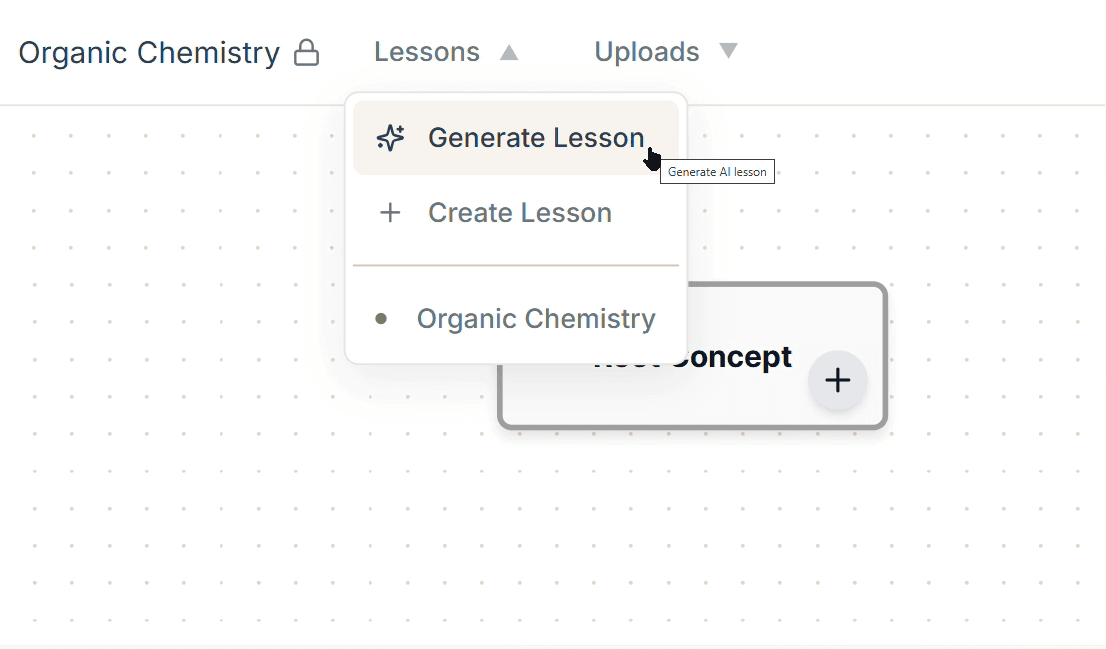
- In your notebook, choose Generate lesson from the navigation panel.
- Upload a PDF, PPTX, or DOCX file (Max 50MB / 100 pages).
Upload one chapter per lesson to keep your concept maps clear.

Explore your concept map
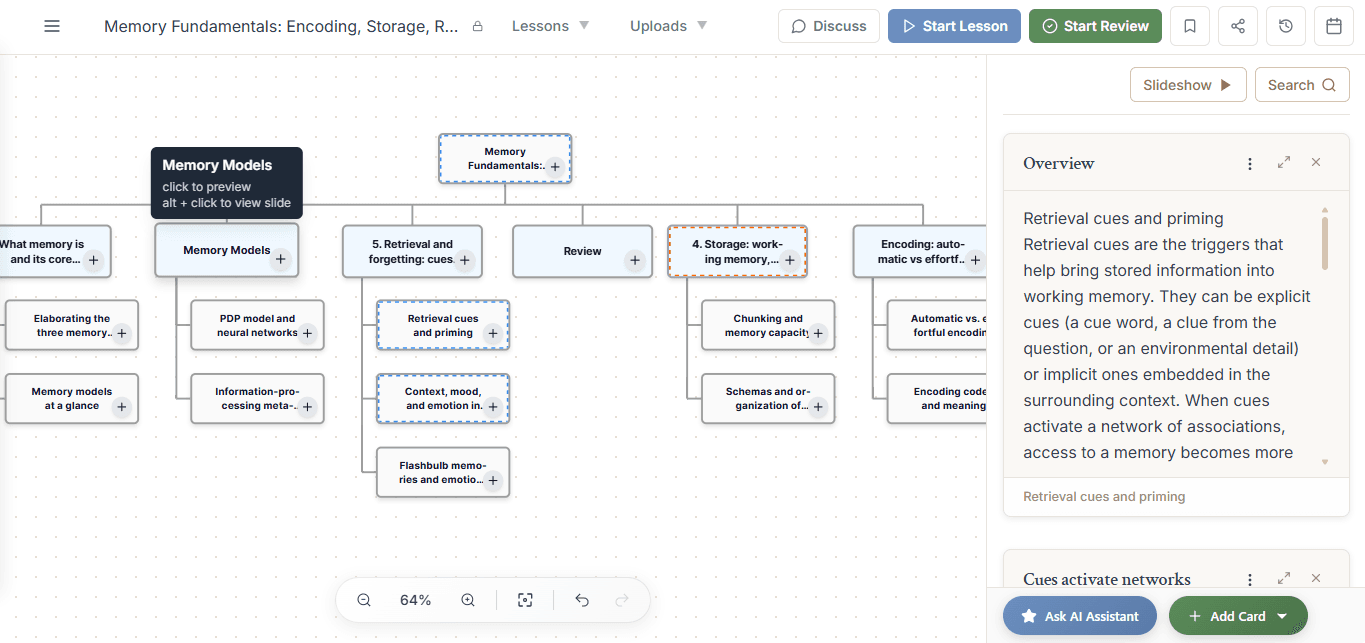
Each node in the concept map is a five-minute micro lesson including a summary, flashcards, and a quiz.
- Blue nodes: Primary topics representing main ideas.
- Nested nodes: Subtopics depending on complexity.
Use blue nodes as your “anchor” topics.
Drill into nested nodes when you’re ready for more detail.
Revisit the Uploads tab whenever you want to cross-check the original material.

Add more lessons to your notebook
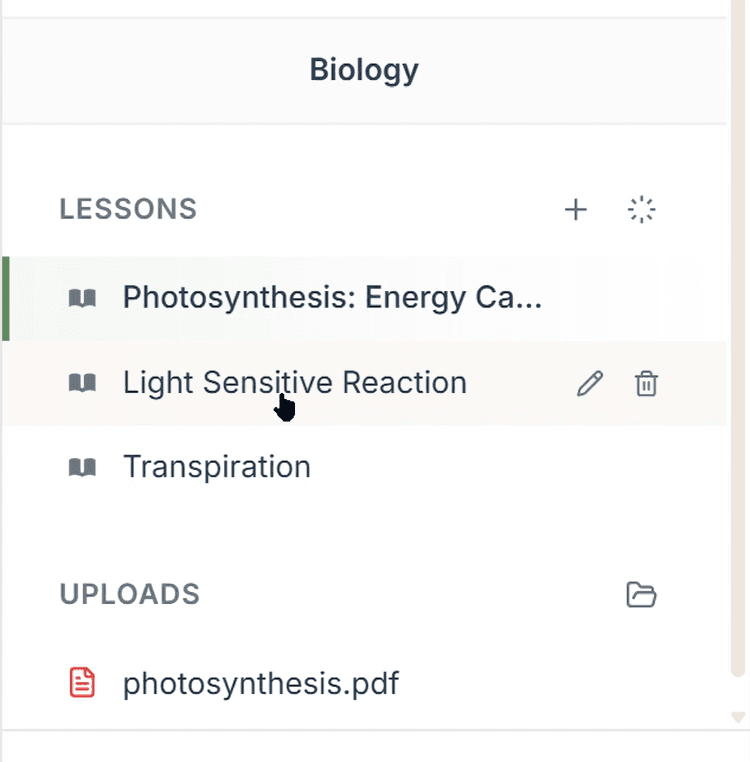
You can keep expanding a notebook as you study a course over time. Whenever you’re ready, select Generate lesson again.
New concept maps will be added to the same notebook so you can build a rich, connected study hub.
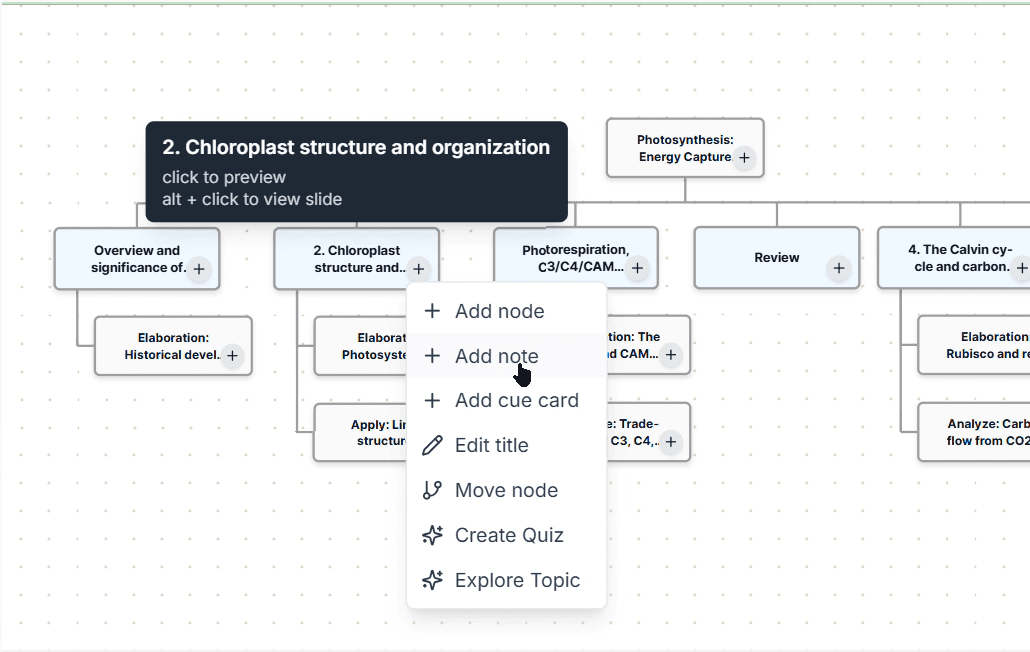
Edit with Map Editor tools
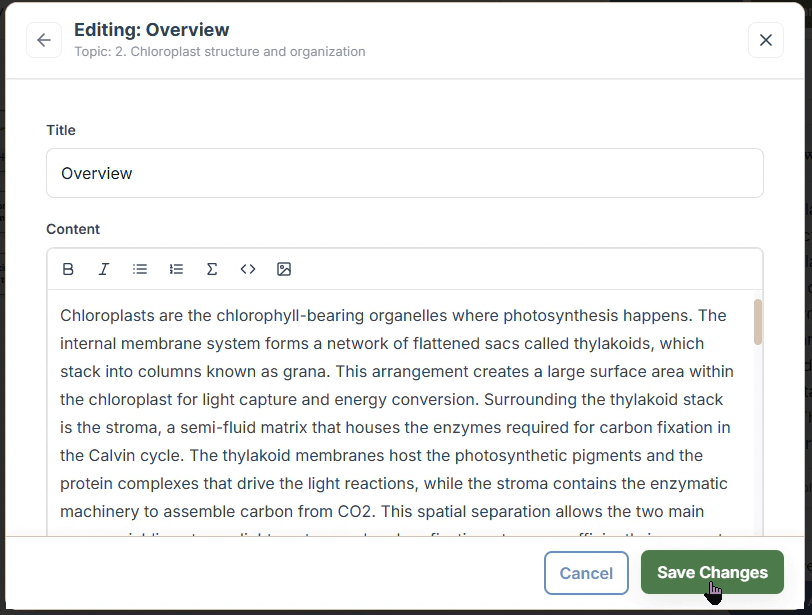
You’re not limited to AI-generated content. Customize lessons to match how you think.
- Create your own flashcards and note cards.
- Add new topics directly to the map.
- Co-edit a concept map with collaborators.
This makes WiseGraph a living notebook that grows with your understanding, not just a static set of notes.

Create a study plan
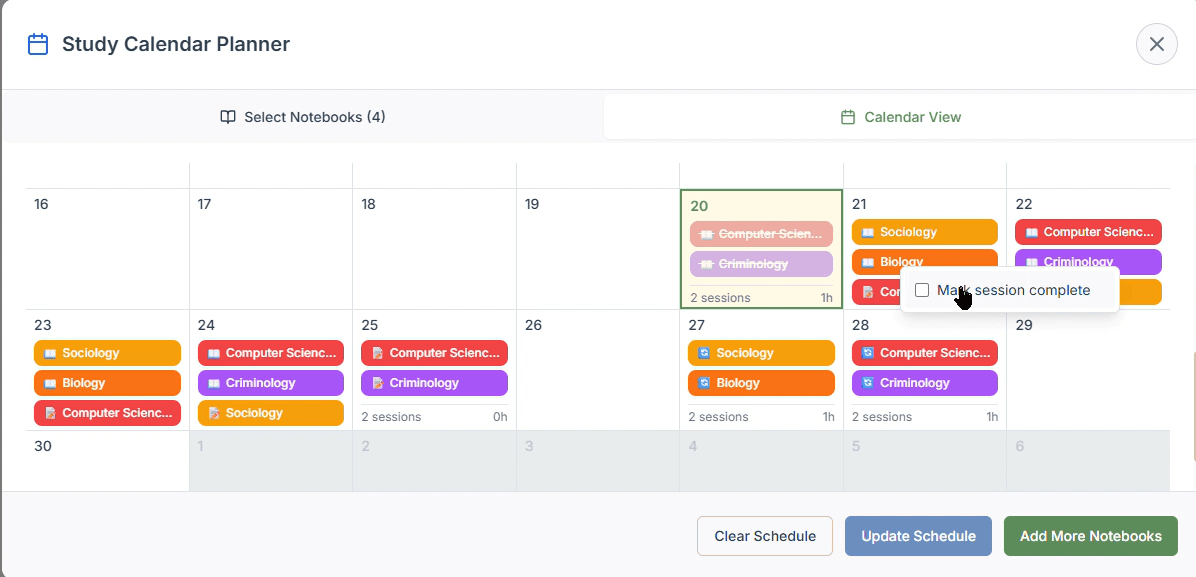
WiseGraph builds a calm, structured path using spaced repetition. To create a plan, select your notebooks and click Generate study plan.
- Interleaved sessions: Test knowledge across lesson units.
- Focused revision: Strengthen weak spots.
Update your plan whenever you add a big new unit (like a new chapter).
Bookmarks
Never lose track of an important insight.
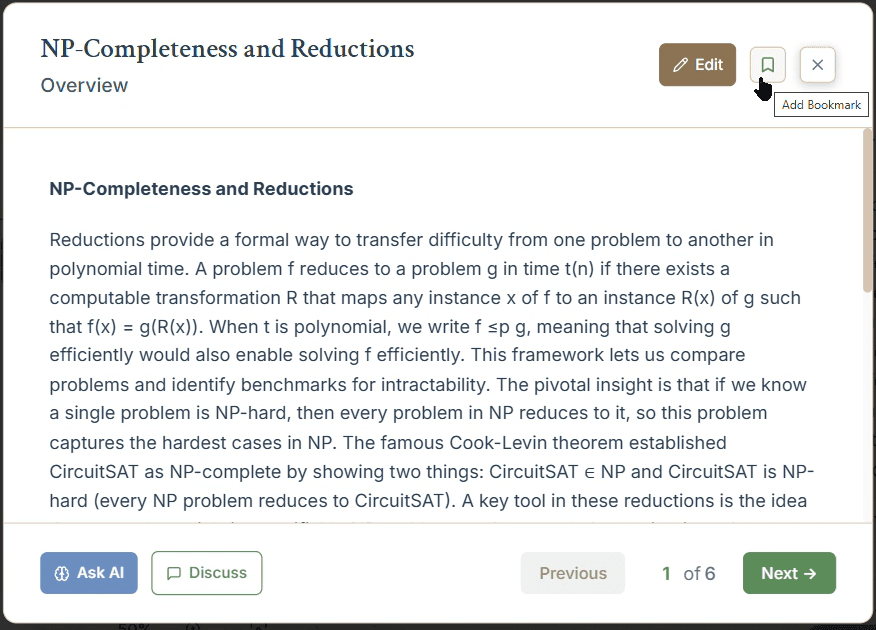
- Use bookmarks to track any topic or flash card you want to return to later.
- Mark tricky concepts, key definitions, or formulas to review before exams.

AI-Assisted Tools
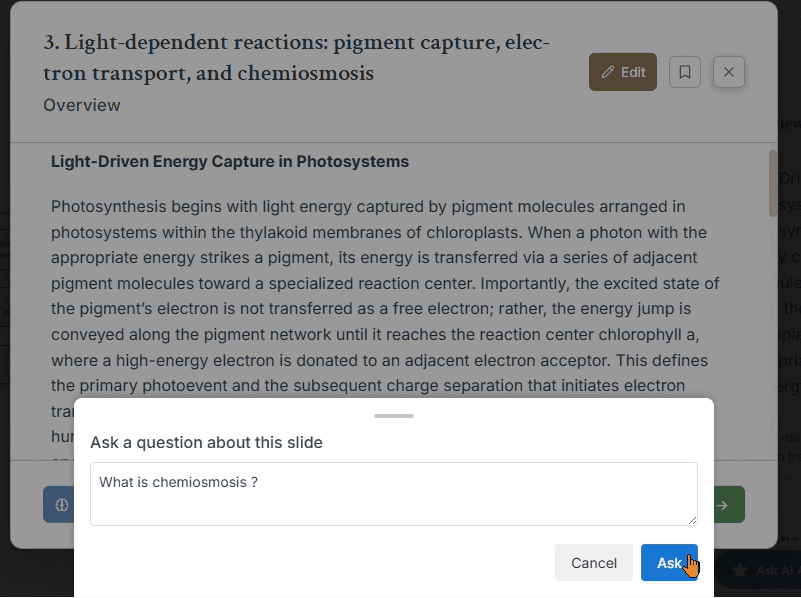
Whenever you need more clarity on a topic, open the AI Tutor. Ask follow-up questions, request alternative explanations, or connect ideas.
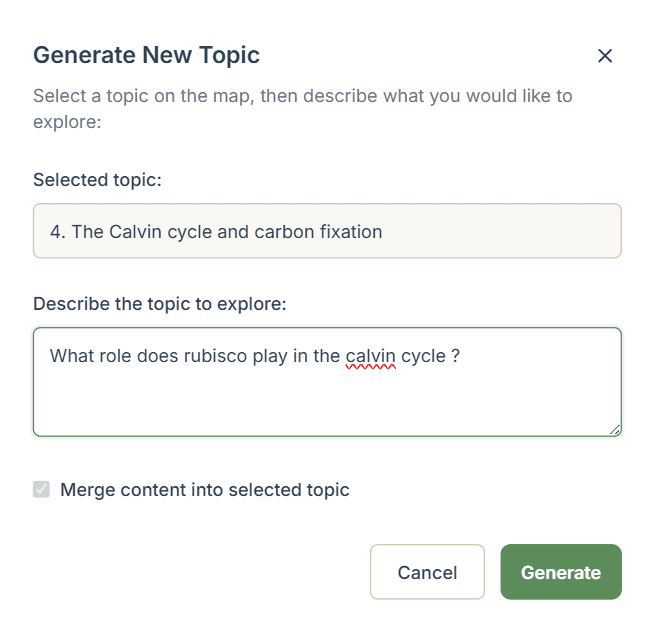
Explore TopicSometimes you don’t need a full lesson. Use Explore Topic to add a single new branch to your concept map for quick side-questions.
Generate Quizzes
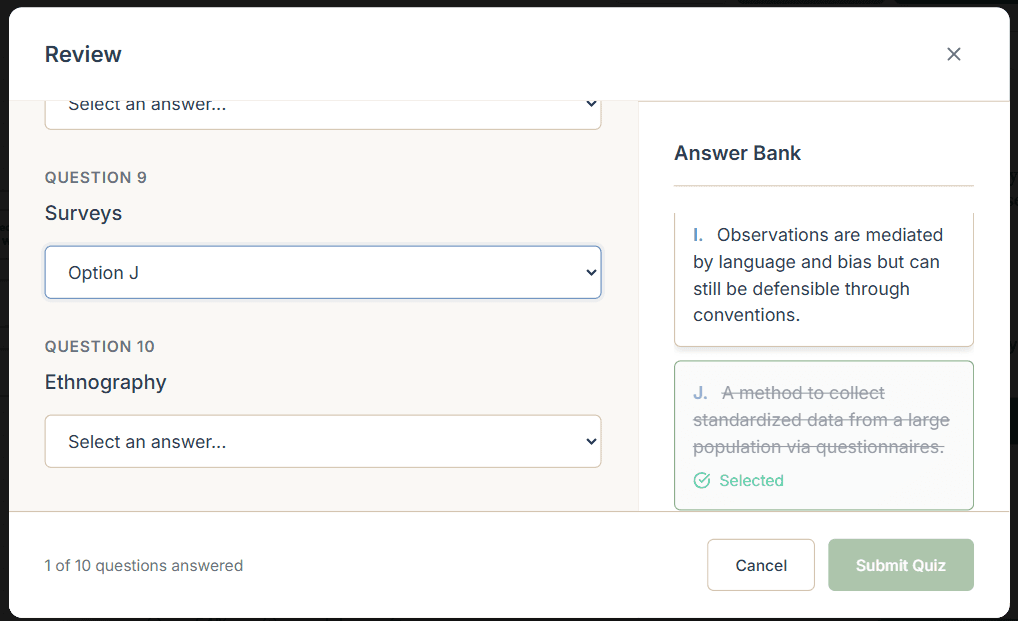
If you need more practice on a topic, select it and choose Generate quiz.
Use these quizzes to self-test and reinforce what you’ve learned between lessons. Formats include:
- Matching
- Multiple choice
- Fill in the blank
- True or false
Educator Features
Educator accounts include all core features plus powerful tools designed for the classroom.
Assigned Quizzes
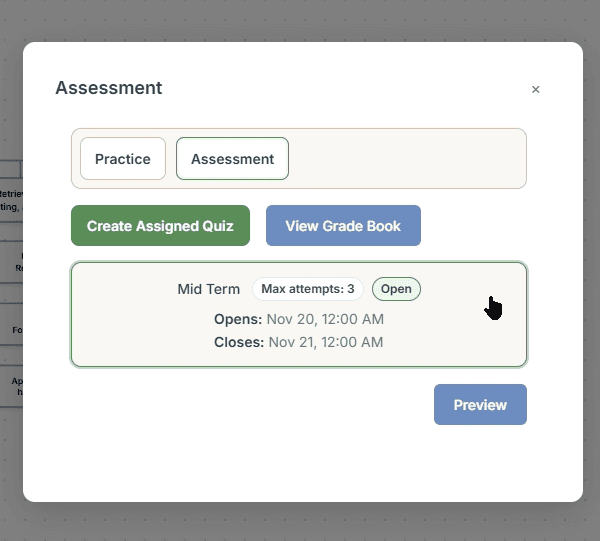
Assign quizzes directly to students who have access to your notebook. Set deadlines, choose attempt limits, and view grades in the built-in gradebook.
Public Uploads
Share learning materials publicly with anyone who has access to your notebooks. Perfect for providing reference materials and readings.
You’re ready to get started
Now you know the basics of WiseGraph. Create lessons, explore concept maps, build study plans, and bring your peers into the same space.
Start Today